# Deploying Sourcegraph executors
Executors can be deployed in a variety of manners. The supported deployment options are:
- [Linux Binary Service](/self-hosted/executors/deploy-executors-binary) ([Firecracker](./firecracker) compatible)
- [Terraform on AWS or GCP](/self-hosted/executors/deploy-executors-terraform) ([Firecracker](./firecracker) compatible)
- [Native Kubernetes](/self-hosted/executors/deploy-executors-kubernetes)
- [Docker-in-Docker on Kubernetes](/self-hosted/executors/deploy-executors-dind)
- [Docker-Compose](/self-hosted/executors/deploy-executors-docker)
See [deciding which executor deployment method to use ](../executors#deciding-which-executor-deployment-method-to-use) for more information on these different deployment options.
Executors are available with no additional setup required on Sourcegraph
Cloud.
### Resource recommendations
It is recommended to set the resources based on the number of jobs an instance will process in parallel.
A single job should have the following resources available.
- **CPU:** 4
- **Memory:** 12GB
- **Disk:** 20GB
So, if you expect an Executor instance to process up to 4 jobs in parallel, the recommended resources for the machine are
- **CPU:** 16
- **Memory:** 48GB
- **Disk:** 80GB
The above recommended resources can be changed to fit your constraints. See below for configuring resources for a Job.
The smallest machine type on AWS that can support Executors with
Firecracker is `c5n.metal` (72 vCPU and 192GB of Memory), but concurrency
can be turned up for the additional cost.
#### Job configuration
The maximum number of Jobs an Executor instance can run in parallel is configured by the Environment Variable `EXECUTOR_MAXIMUM_NUM_JOBS`.
The CPU and Memory usage of an individual Job is configured by the Environment Variables `EXECUTOR_JOB_NUM_CPUS`
and `EXECUTOR_JOB_MEMORY`.
See [executor configuration](/self-hosted/executors/executors-config) for a full list of configuration options.
Changing CPU and Memory for jobs will affect the overall requirements
for an Executor instance.
#### AWS
It is recommended to add the following **Disk** configuration in AWS.
- **IOPS:** Equal to the Disk Size (so if **Disk** is 100GB, then IOPS is 100)
- **Throughput:** 125MiB/s
### Supported infrastructures
- **Operating System:** Linux-based
- **Architecture:** AMD64
#### Firecracker requirements
To run Executors with Firecracker enabled requires the machine to support [Kernel-based Virtual Machine](https://en.wikipedia.org/wiki/Kernel-based_Virtual_Machine).
See [deploying Executors binary](/self-hosted/executors/deploy-executors-binary) for additional information on configuring Linux Machines.
#### Cloud providers
Machines on Cloud Providers have additional constraints for use with firecracker.
- **AWS:** machine type must be
a [metal instance (`.metal`)](https://docs.aws.amazon.com/AWSEC2/latest/UserGuide/instance-types.html)
- **GCP:** the instance
must [enable nested virtualization](https://cloud.google.com/compute/docs/instances/nested-virtualization/enabling)
## Executor authentication
Executors must be run separately from your Sourcegraph instance.
Since they must still be able to reach the Sourcegraph instance in order to dequeue and perform work, requests between the Sourcegraph instance and the executors are authenticated via a shared secret.
Before starting any executors, generate an arbitrary secret string (with at least 20 characters) and [set it as the `executors.accessToken` key in your Sourcegraph instance's site-config](/admin/config/site-config#view-and-edit-site-configuration). The `EXECUTOR_FRONTEND_PASSWORD` environment variable on the executor instance will need to be configured with the same secret string.
## Executor installation
Once the shared secret is set in Sourcegraph, you can start setting up executors that can use that access token to talk to the Sourcegraph instance.
### Supported installation types
## Validating executor deployments
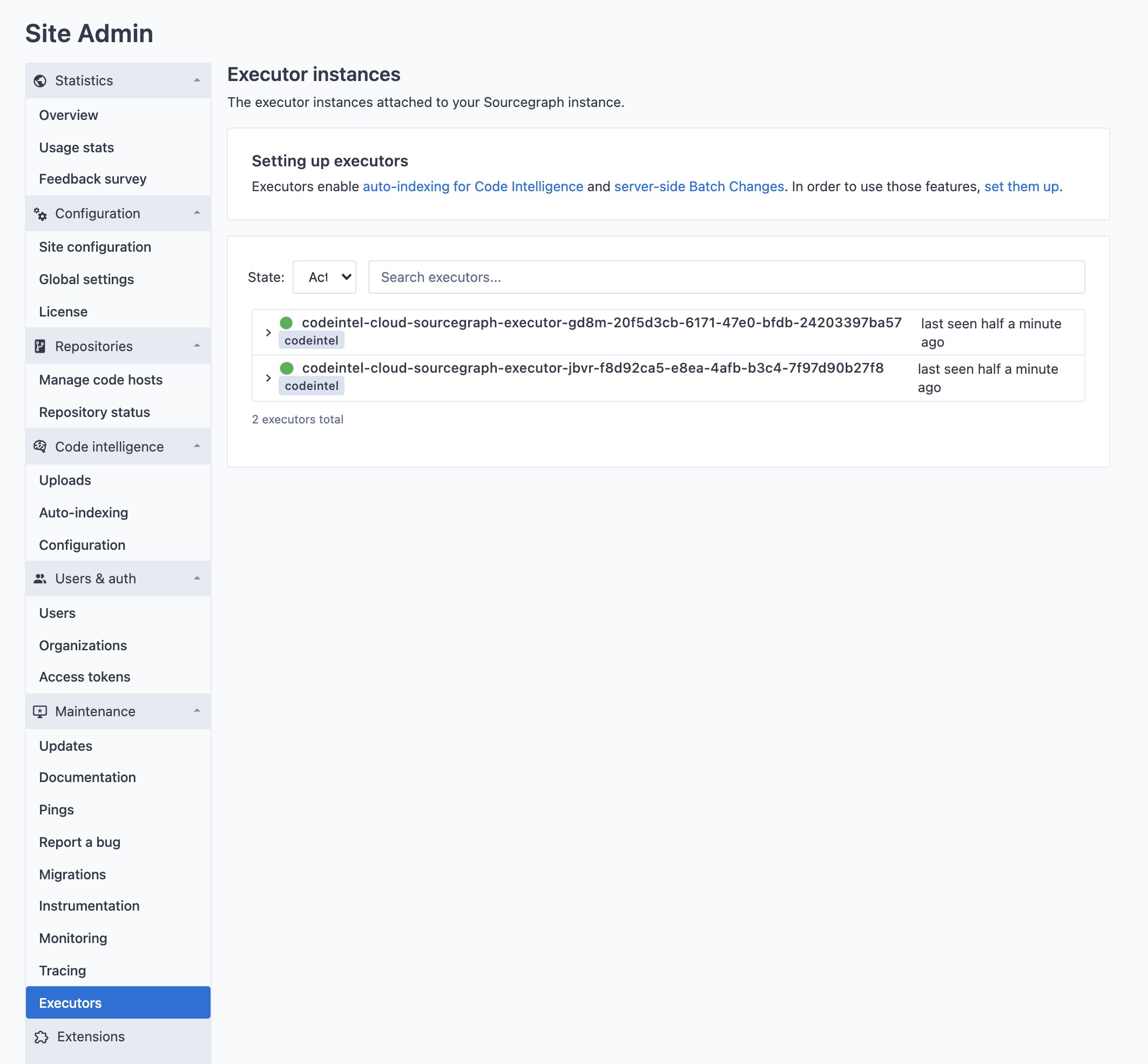
If executor instances boot correctly and can authenticate with the Sourcegraph frontend, they will show up in the **Executors** page under **Site admin > Maintenance**.
## Using private registries
If you want to use docker images stored in a private registry that requires authentication, follow this section to configure it.
Depending on the executor runtime that is being used, different options exist for provisioning access to private container registries:
- Through a special secret called `DOCKER_AUTH_CONFIG`, set in [executor secrets](/admin/executors/executor-secrets) in Sourcegraph.
- Through the `EXECUTOR_DOCKER_AUTH_CONFIG` environment variable (also available as a variable in the terraform modules for executors).
- Through the [`config.json` file in `~/.docker`](https://docs.docker.com/engine/reference/commandline/login/). **If using executors with firecracker enabled (recommended) this option is not available.**
When multiple of the above options are combined, executors will use them in the following order:
- If a `DOCKER_AUTH_CONFIG` executor secret is configured, that will be preferred. That is so that users can overwrite the credentials being used in their user-settings. This is the only option available in Sourcegraph Cloud.
- If the `EXECUTOR_DOCKER_AUTH_CONFIG` environment variable is set, this will be used as the next option.
- Finally, if neither of the above are set, executors will fall back to the `config.json` file in the user home directory of the user that is owning the executor process. NOTE: This is not available in the firecracker runtime, as the rootfs is not shared with the host.
The docker CLI supports three ways to use credentials:
- Using static credentials
- Using [credential helpers](https://docs.docker.com/engine/reference/commandline/login/#credential-helpers)
- Using [credential stores](https://docs.docker.com/engine/reference/commandline/login/#credentials-store)
Credential helpers and credential stores are only available for use with the `config.json` configuration option, as they require additional infrastructural changes. Thus, those options are not available on Sourcegraph Cloud.
### Using static credentials
The `EXECUTOR_DOCKER_AUTH_CONFIG` environment variable and the `DOCKER_AUTH_CONFIG` secret expect a docker config with only the necessary properties set for configuring authentication.
The format of this config supports multiple registries to be configured and looks like this:
```json
{
"auths": {
"myregistry.example.com[:port]": {
"auth": "base64(username:password)"
},
"myregistry2.example.com[:port]": {
"auth": "base64(username:password)"
}
}
}
```
You can either create this config yourself by hand, or let docker do it for you by running:
```bash
TMP_FILE="$(mktemp -d)" bash -c 'echo "" | docker --config "${TMP_FILE}" login --username "" --password-stdin "" && cat "${TMP_FILE}/config.json" && rm -rf "${TMP_FILE}"'
```
> NOTE: This doesn't work on Docker for Mac if "Securely store Docker logins in macOS keychain" is enabled, as it would store it in the credentials store instead.
You can also run the following:
```bash
echo -n "username:password" | base64
```
and then paste the result of that into a JSON string like this:
```json
{
"auths": {
"myregistry.example.com[:port]": {
"auth": ""
}
}
}
```
For Google Container Registry, [follow this guide](https://cloud.google.com/container-registry/docs/advanced-authentication#json-key) for how to obtain long-lived static credentials.
### Configuring the auth config for use in executors
Now that the config has been obtained, it can be used for the `EXECUTOR_DOCKER_AUTH_CONFIG` environment variable (and terraform variable `docker_auth_config`) or you can create an [executor secret](/admin/executors/executor-secrets#creating-a-new-secret) called `DOCKER_AUTH_CONFIG`. Global executor secrets will be available to every execution, while user and organization level executor secrets will only be available to the namespaces executions.
## Using custom certificates with executors
By default, executors will search for certificates in the following files and directories:
| Directory or file | Distribution |
| --------------------------------------------------- | ------------------------- |
| `/etc/ssl/certs/ca-certificates.crt` | Debian/Ubuntu/Gentoo etc. |
| `/etc/pki/tls/certs/ca-bundle.crt` | Fedora/RHEL 6 |
| `/etc/ssl/ca-bundle.pem` | OpenSUSE |
| `/etc/pki/tls/cacert.pem` | OpenELEC |
| `/etc/pki/ca-trust/extracted/pem/tls-ca-bundle.pem` | CentOS/RHEL 7 |
| `/etc/ssl/cert.pem` | Alpine Linux |
| `/etc/ssl/certs` | SLES10/SLES11 |
| `/etc/pki/tls/certs` | Fedora/RHEL |
| `/system/etc/security/cacerts` | Android |
If your environment makes use of custom certificates, you can add them to one of these locations in order for executors to pick them up.
### Adding certificates to a binary deployment
> NOTE: see the [troubleshooting guide](/self-hosted/executors/executors-troubleshooting#connecting-to-cloud-provider-executor-instances) for instructions on how to connect to cloud provider VMs.
After successfully [deploying binaries](/self-hosted/executors/deploy-executors-binary), follow these steps:
1. Copy your certificates to `/etc/ssl/certs`.
1. If you are using systemd, run `systemctl restart executor`. If not, proceed to the next step.
1. Run `executor run` on the VM in order to restart the executor service.
#### Adding certificates with Firecracker
When running executors with the [firecracker runtime](/admin/executors/#firecracker), custom certificates need to be added in
the container that is running within the Firecracker VM. To add custom certificates, you must create a new Docker image
that contains the certificates. For example,
```dockerfile
FROM upstream:tag
# Copy the certificates into the container
COPY customcert.crt /usr/local/share/ca-certificates/customcert.crt
# Update the certificate store
RUN chmod 644 /usr/local/share/ca-certificates/customcert.crt && update-ca-certificates
# ...
```
##### Code Intel
Once the custom image is built, you can configure the executor to use it by setting
the `codeIntelAutoIndexing.indexerMap` to use the custom image. For example,
```json
"codeIntelAutoIndexing.indexerMap": {
"go": "myregistry.company.com/scip-go:custom"
}
```
### Adding certificates to a Kubernetes deployment using manifests
First, add the certificate data as a secret in your preferred namespace:
```shell
SECRET_NAME=custom-certs
CERT_PATH=/path/to/cert.pem
kubectl create secret generic $SECRET_NAME --from-file=customcert.crt=$CERT_PATH
```
Or as a declarative manifest:
```yaml
apiVersion: v1
kind: Secret
metadata:
name: custom-certs
data:
customcert.crt: $(base64 -i /path/to/cert.pem)
type: Opaque
```
Next, mount the secret in the executor deployment. Add the following snippet to `spec.template.spec.volumes` of each executor deployment:
```yaml
- name: custom-certs
secret:
secretName: custom-certs
```
Also add this snippet to `spec.template.spec.containers.volumeMounts` of each executor deployment (specifically, the executor container, in case you inject any sidecars):
```yaml
- mountPath: /etc/ssl/certs
name: custom-certs
readOnly: true
```
Next, apply the updated YAML manifests. Once the executors have rolled out, they should be picking up your custom certificates.
### Adding certificates to a Kubernetes deployment using Helm
You may follow the same instructions for the manifest deployment to set custom certificates.
### Adding certificates to a Docker Compose deployment
First, ensure that the certificate file is present on the host machine. Next, add the volume to the [executor compose file](https://sourcegraph.com/github.com/sourcegraph/deploy-sourcegraph-docker/-/blob/docker-compose/executors/executor.docker-compose.yaml?L26-30):
```yaml
- '/path/to/certs:/etc/ssl/certs'
```
Next, restart the deployment with `docker-compose down` and `docker-compose up -d`.