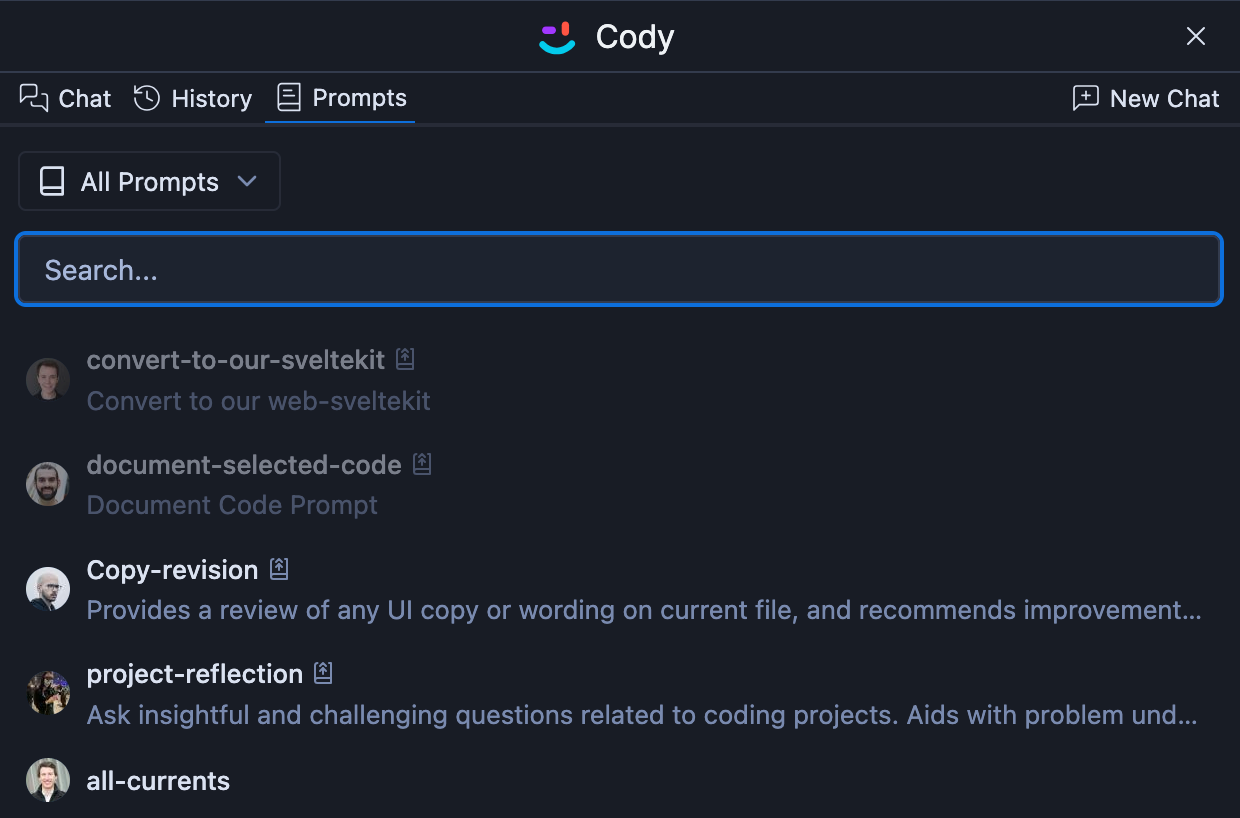
# Cody for Web
Learn how to use Cody in the web interface with your Sourcegraph.com
Enterprise instance.
In addition to the Cody extensions for [VS Code](/cody/clients/install-vscode), [JetBrains](/cody/clients/install-jetbrains), and [Visual Studio](/cody/clients/install-visual-studio) IDEs, Cody is also available in the Sourcegraph web app.
## Initial setup
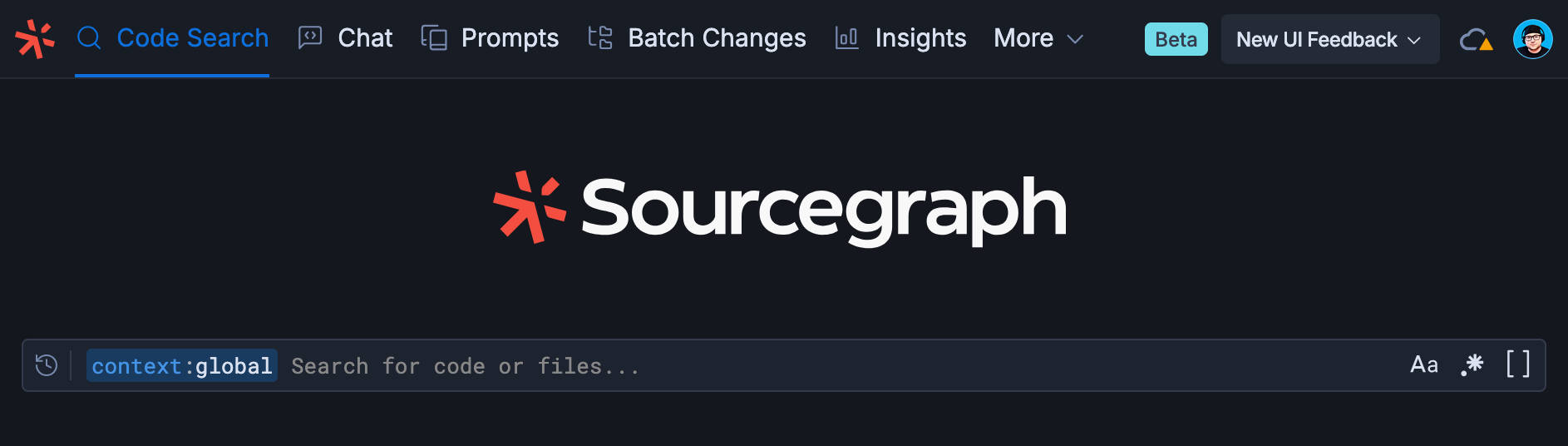
Log in to your Sourcegraph.com Enterprise instance through codehosts like GitHub and GitLab or via traditional Google sign-in. This takes you to Sourcegraph’s web interface. From here, there are two ways to access the Cody chat:
1. Run any search query via **Code Search** and click the **Cody** button on the right to open the chat window
2. Directly click the **Chat** tab from the top header to open the chat interface
## Chat interface
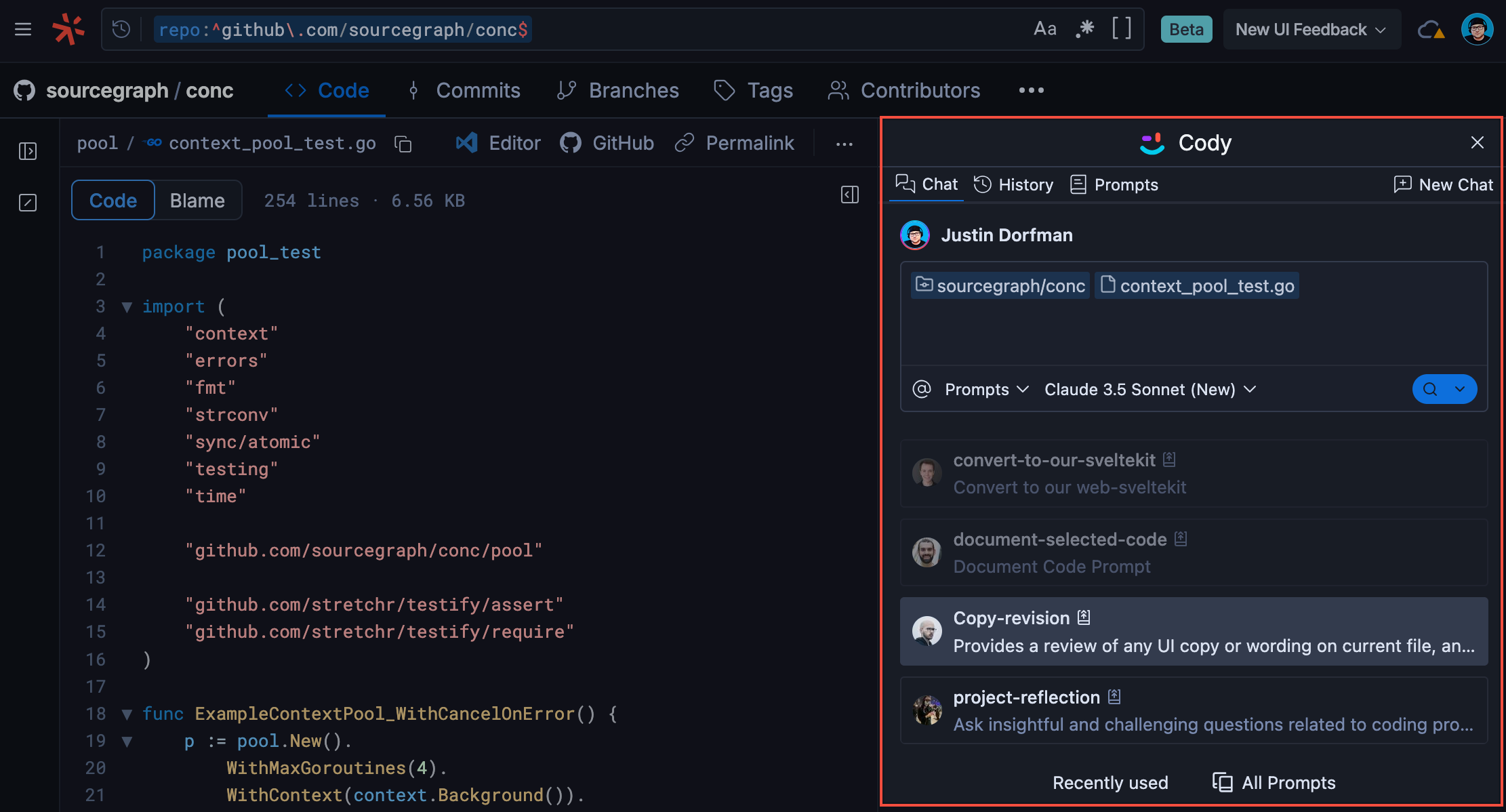
The Cody chat interface for the web is similar to the one you get with the IDE extensions. However, the chat experience is slightly different depending on whether you use Cody with your search query results or directly from the top Chat header.
The chat interface with your Code Search queries opens parallel to your query search results, similar to the chat window in the IDE extensions. However, when you click **Chat** from the top header in your Sourcegraph.com Enterprise instance, the chat interface opens on a new page.
{' '}
The new and improved chat UI for Cody for the web is currently available to users
on Sourcegraph versions >=5.5. To use this new chat interface, you should update
your Sourcegraph instance to the latest version.
## Chat with Cody on the web interface
The feature set for the Cody chat is the same as the IDE extensions. Your previous chats can be viewed from the **History** tab. Claude 3.5 Sonnet is selected as the default chat model. You can change this LLM model based on your use case to optimize speed, accuracy, or cost. Enterprise users with the new [model configuration](/cody/enterprise/model-configuration) can use the LLM selection dropdown to choose a chat model. You can read about these supported LLM models [here](/cody/capabilities/supported-models#chat-and-commands).
To help you automate your key tasks in your development workflow, you get **[Prompts](/cody/capabilities/prompts)**. If you are a part of an organization on Sourcegraph.com or a self-hosted Sourcegraph instance, you can view these pre-built Prompts created by your teammates. On the contrary, you can create your Prompts via the **Prompt Library** from your Sourcegraph instance.
## Context selection
If you use Cody with your search results, the chat input will, by default, have the context of your searched codebase. This context is based on your current repository and file.
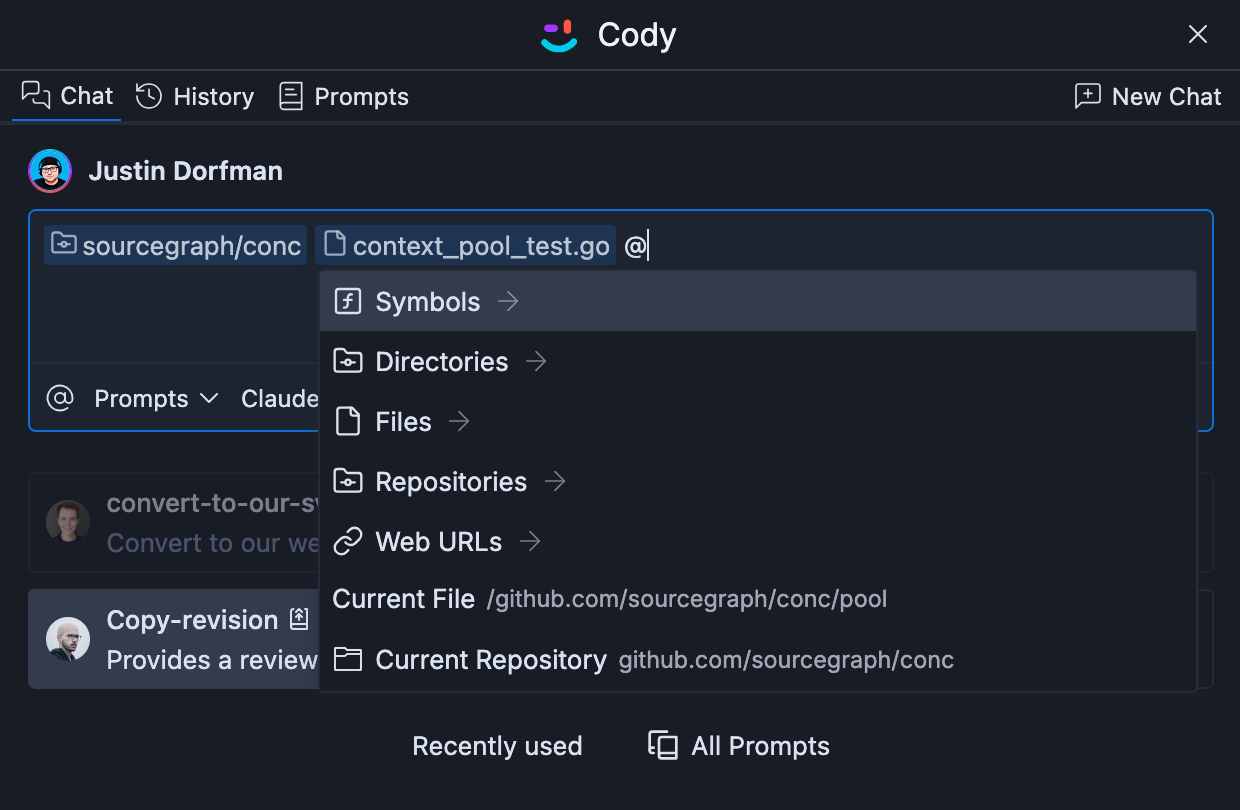
You can add or delete any new or existing context by `@-mentioning` files, symbols, directories, repositories, and web URLs. Enterprise users can `@-mention` remote directories as well. When you have both a repository and files as context, Cody will search the repository for context while prioritizing the mentioned files.
If you use Cody directly from the top header, the chat input will have no pre-filled context chips by default. You can chat without context or add or delete any new or existing context by `@-mentioning` context chips.
### Rerun prompts with different context
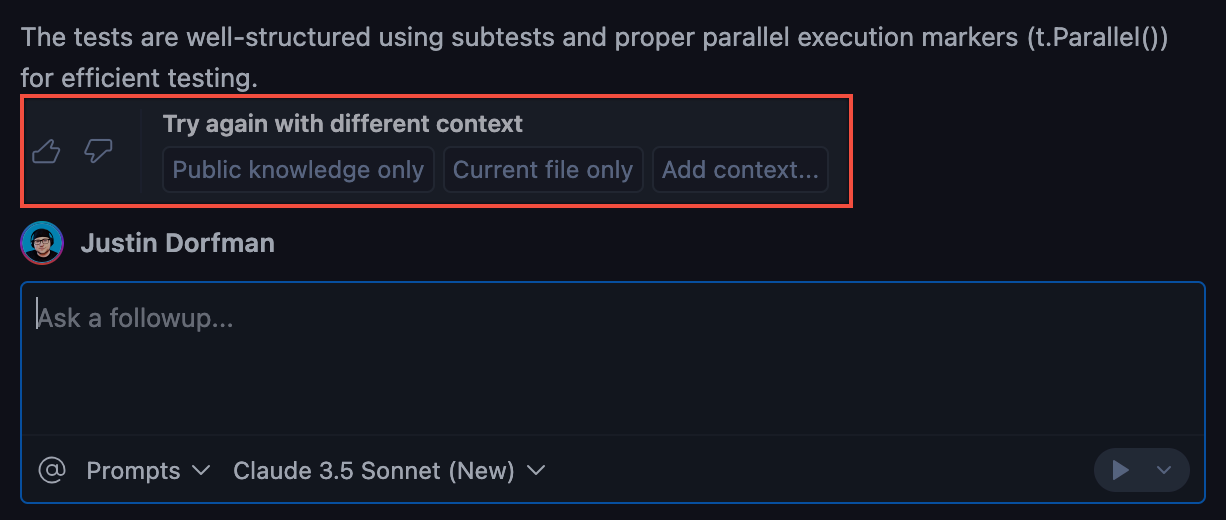
If Cody's answer isn't helpful, you can try asking again with a different context:
- **Public knowledge only**: Cody will not use your code files as context; it’ll only use knowledge trained into the base model
- **Add context**: Provides @-mention context options to improve the response by explicitly including files, symbols, and remote repositories
For a detailed breakdown of Cody's capabilities across different clients
[read these feature parity docs](/cody/clients/feature-reference).
## Prompts
Cody allows you create quick, ready-to-use [prompts](/cody/capabilities/prompts) to automate key tasks in your workflow. Prompts are created and saved in the Prompt Library and can be accessed from the **Tools > Prompt Library** in the top navigation bar in your Sourcegraph instance.