# Prompts
Learn how prompts can automate and accelerate your workflow with Cody.
Cody offers quick, ready-to-use **Prompts** to automate key tasks in your workflow. Prompts are created and saved in the **Prompt Library** and can be accessed from the top navigation bar in your Sourcegraph Enterprise instance.
To run Prompts and access Prompt Library, you must have the following:
- A Sourcegraph Enterprise account with Cody enabled
- Cody extension installed in your IDE (VS Code, JetBrains, Visual Studio)
## Prompt Library
The **Prompt Library** allows you to create, edit, share, and save prompts you’ve created or shared within your organization. You can also search for prompts, filter the list to find a specific prompt by the owner, and sort by name or updated recently.
Go to **Prompts** from the top navigation bar in your Sourcegraph Enterprise instance. Alternatively, you can access the **Prompt Library** from the **Cody** extension in your IDE, which directs you to the Prompt Library page.
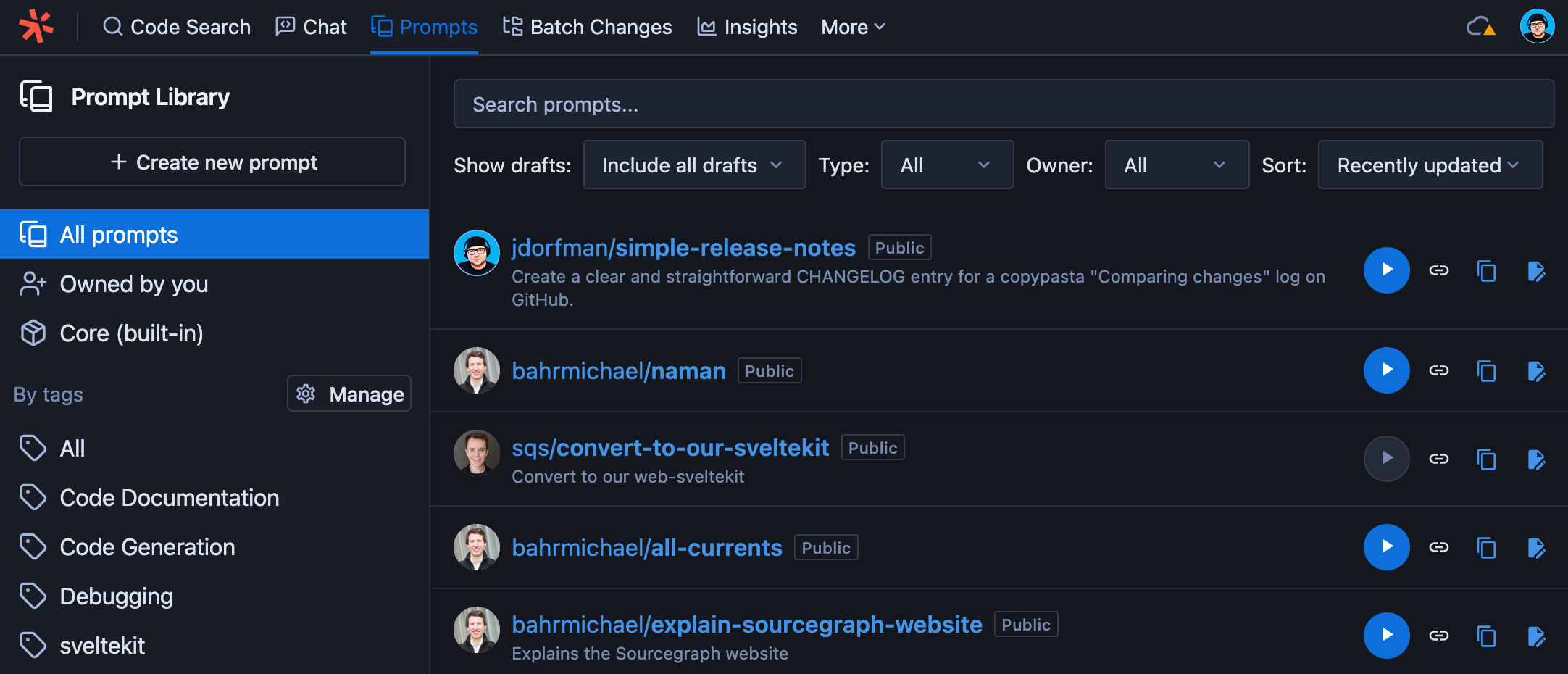
Here, you can view all prompts (shared with you in an organization or created by you) and some core (built-in) prompts to help you get started.
### Core (built-in) prompts
The core (built-in) prompts are available to all users. These prompts are designed to help you start with Cody and provide a starting point for your own prompts. You get the following core (built-in) prompts:
- document-code
- explain-code
- find-code-smells
- generate-unit-tests
You can run these prompts by clicking the **play** icon next to the prompt name, **copy the prompt permalink**, or **duplicate the prompt** to make a copy and edit it according to your needs.
## Create prompts
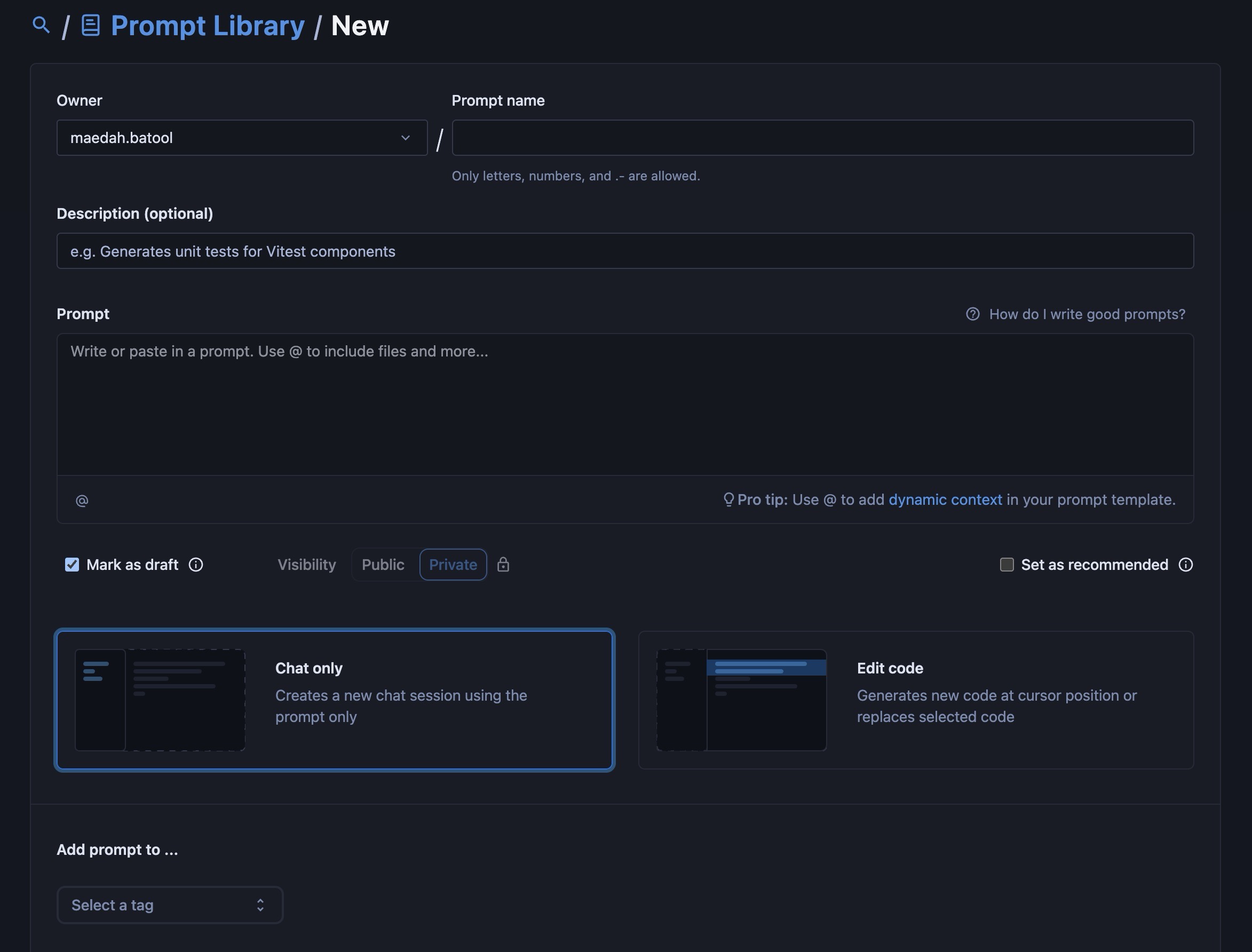
Click the **Create new prompt** button from the **Prompt Library** page.
- Select the **Owner** and **Prompt Name**
- Write a prompt description
- Next, fill out the **Prompt template** box with all your prompt instructions
- You can also add dynamic context that will allow your prompt to use content from different sources like current selection and current file
- Select the visibility of the prompt, either **Public** or **Private**
- You can mark your prompt as **draft**. Draft prompts are not visible to other users until you publish it
- Choose the mode of the prompt, whether it will be **Chat only** or can **Edit code**
- Once done, click the **Create prompt** button
There are also a few advanced options that you can configure.
### Draft prompts
You can mark your prompt as a draft. A draft prompt is not visible to everyone. You can only view, run, and edit your draft prompts until you publish it.
## View prompts
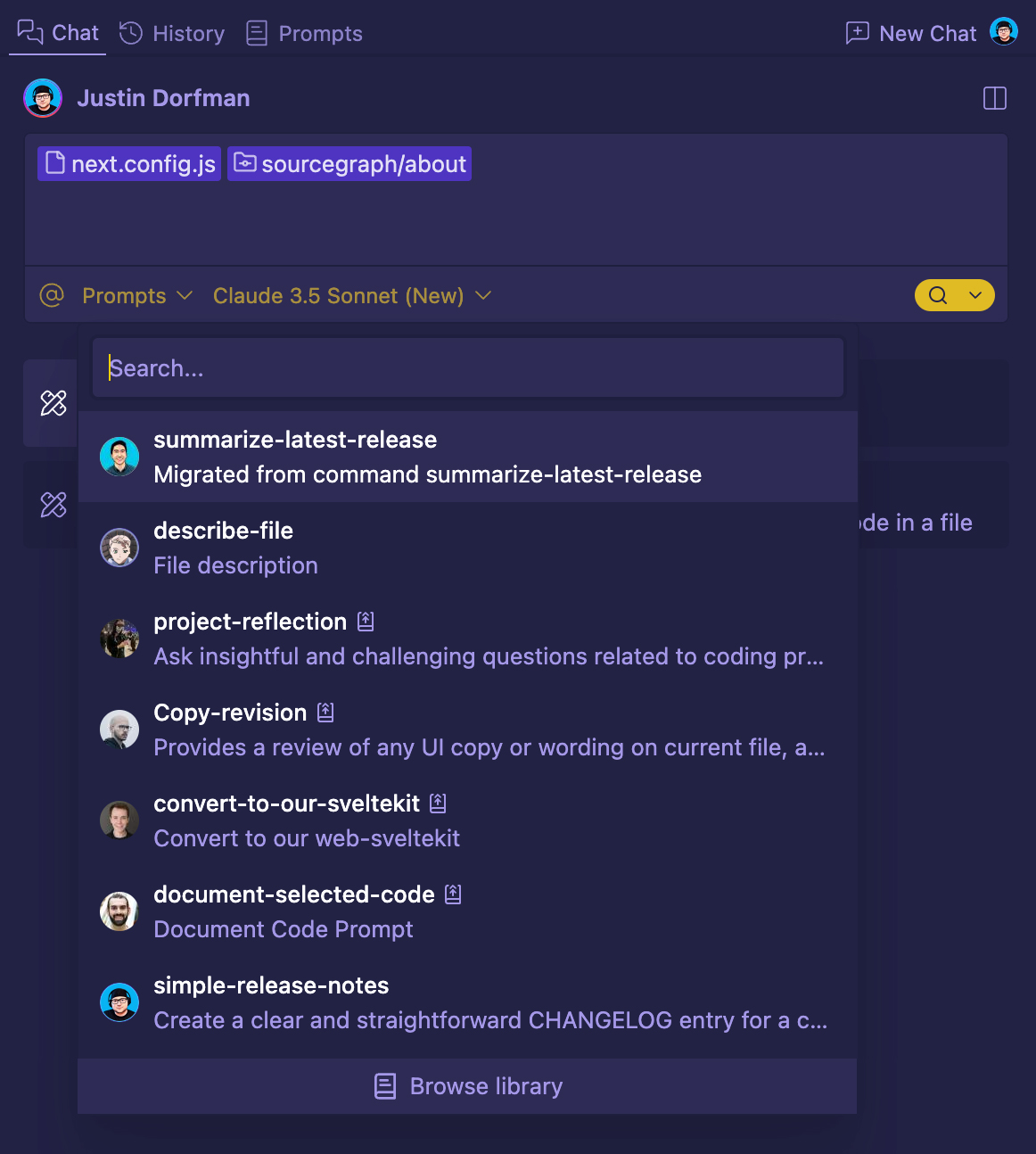
The new prompt is added to the Prompt Library page and appears in the Prompts list in the Cody chat panel (both in the editor and on the web). If your prompt does not appear in the Prompts list, make sure you've logged in with the same account you used to create it.
Once the prompt is visible, it's ready to be used by:
- **The prompt's owner** if it is a user
- **All members of the organization** if the prompt's owner is an organization
- **Everyone** if the prompt is marked **Public** (which only site admins can do)
## Edit prompts
To edit a prompt, click the Edit button next to the prompt in the Prompt Library and make the necessary changes. You can also use this interface to **Transfer Ownership** of the prompt or delete it from this view.
## Prompt tags
Prompt tags are supported in Sourcegraph Enterprise, and only site admins
can create them.
Site admins can categorize prompts and create **tags**. This helps you keep your prompts organized, especially when there are many prompts to use and manage.
- Go to **Tools > Prompt Library** from your Enterprise Sourcegraph instance
- From the left sidebar click **Manage** next to the **tags** list
- All the new and existing tags are listed here. You can also search for a specific tag by typing its name in the search box
- Click **New tag**, type the **Tag name** and hit the **Create** button

Once created, it will appear in the **Tags** list and in the sidebar of the Prompt Library. To manage your prompt tags, you can **edit**, **delete**, or **copy link to prompts with this tag**.
### Assigning tags to prompts
Once site admins create tags, other users in your organization can assign tags to their prompts. While creating or editing a prompt, there is a drop-down selector **Add prompt to...** to assign tags to the prompt.
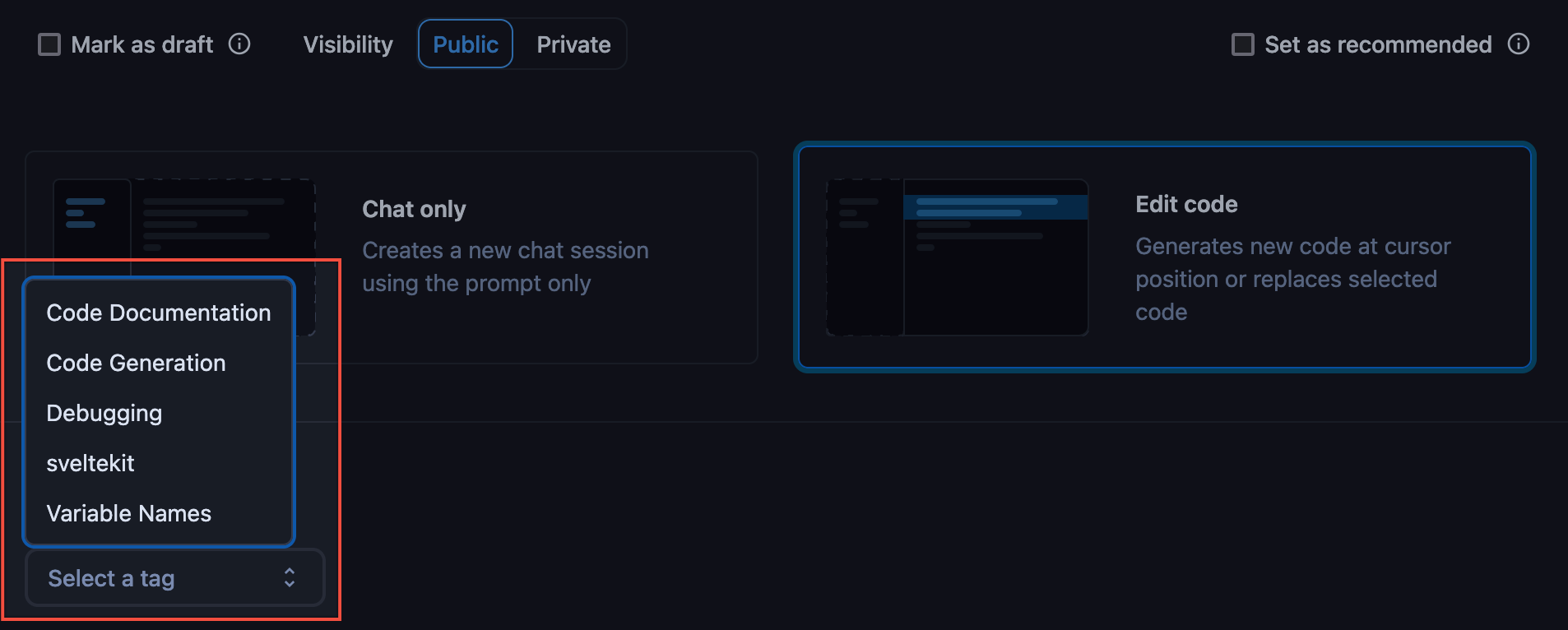
You can assign multiple tags to a prompt and group them based on their functionality, category, or any other criteria for your organization. In addition, with tags assigned to prompts, you can filter prompts by tags in the Prompt Library.
## Specific and dynamic context
Sourcegraph 6.0 adds Beta support for the `@` mention menu in the prompt
library.
When writing prompts, you can leverage both specific and dynamic context through the `@` mention system.
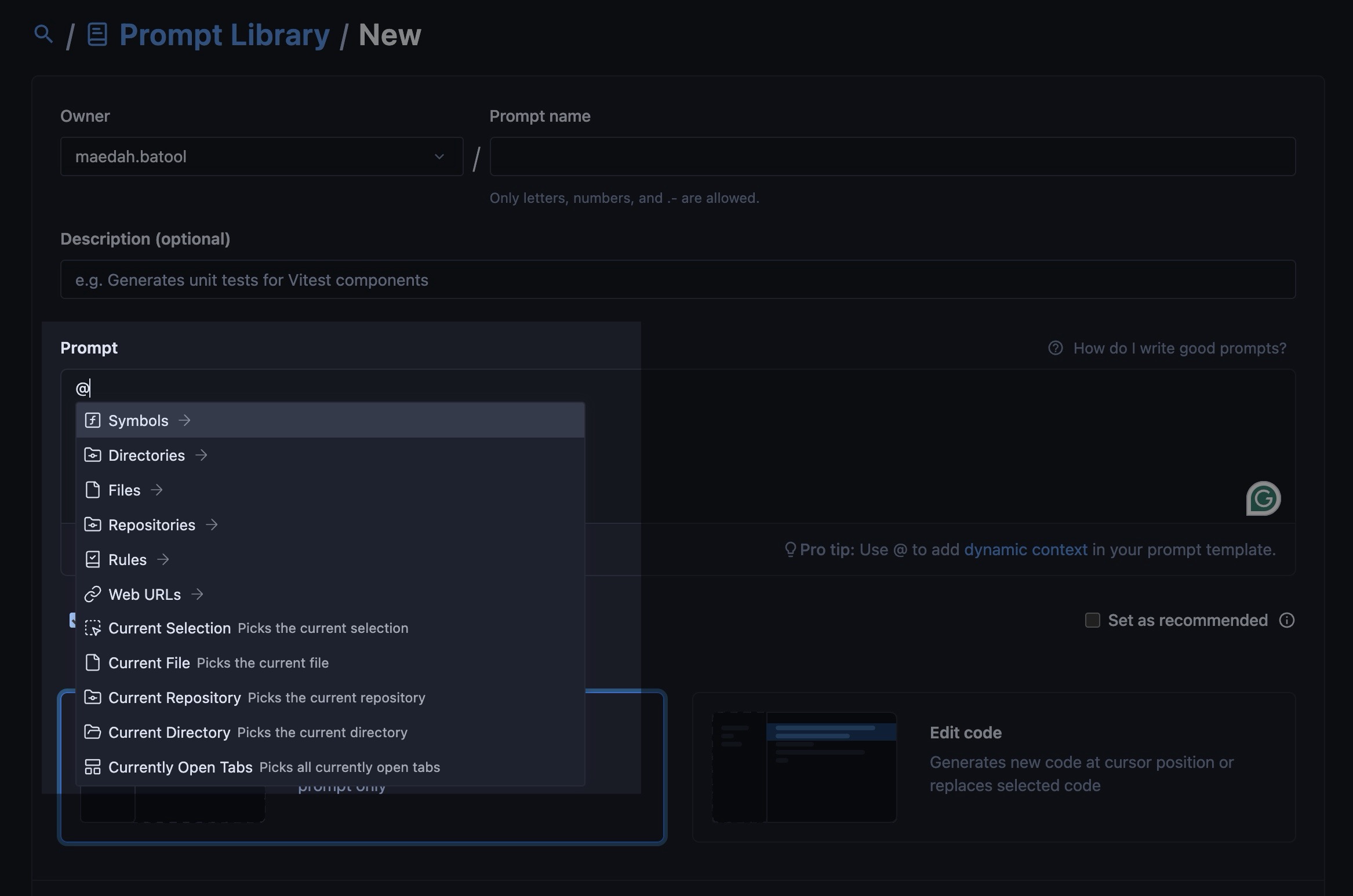
Type `@` to open a dropdown menu that lets you reference specific context like symbols, directories, files, repositories and web URLs.
When selecting a web URL, type out the domain, including the `https://` prefix, for example, https://sourcegraph.com.
For dynamic context that adapts based on what the user is working on, the prompt editor provides special mentions for the current selection, current file, current repository, current directory, and open tabs.
When a user runs a prompt template containing dynamic context mentions, they are automatically resolved to the appropriate specific context based on the user's current workspace state.
To add dynamic context, click on one of the buttons below the prompt editor. We will soon move the buttons into the `@` mention menu as well.
This powerful combination allows prompt authors to create templates that can intelligently access both explicitly defined context and contextually relevant information at runtime.
## Run prompts
You can run prompts via:
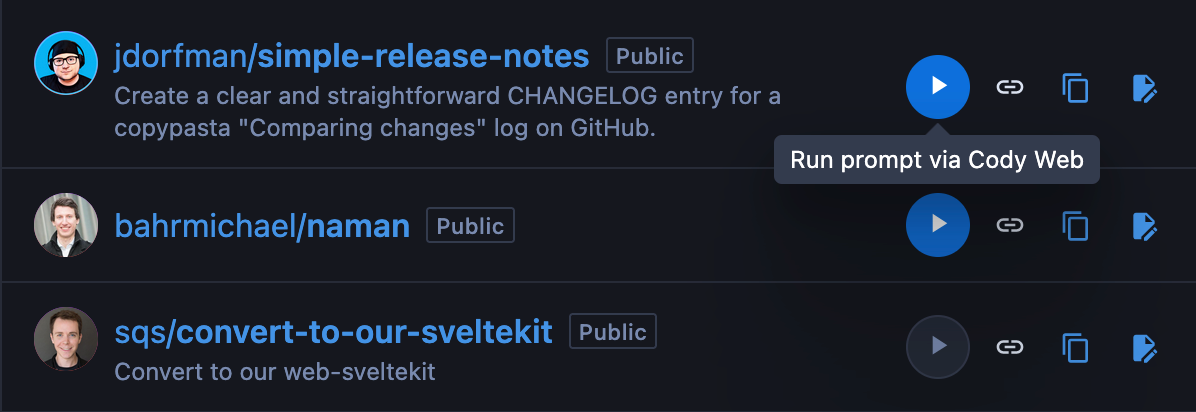
- Clicking the play icon next to a prompt in the Prompt Library list
- From the **Prompts** dropdown in the Cody chat panel both in the editor and on the web
However, prompts marked with the **Edit code** mode can only run from the IDE editor. You cannot run these prompts from the Prompt Library in the web UI. For example, the **document-code** built-in prompt can only run the IDE editor.
## Promoted prompts
Promoted prompts are supported in VS Code and Cody Web.
**Site admins** can promote a prompt by enabling the **Promote prompt** checkbox. This setting allows admins to highlight prompts they want users to use. Promoted prompts are marked with an icon next to their name and appear at the top of the prompt list in the Cody chat.

Prompt Library replaces the default and custom commands in Cody. Custom
Commands (legacy) have been deprecated and will no longer be supported.
If you have custom commands, VS Code automatically detects them and notifies you to migrate them to the Prompts Library. There is a **Migrate commands** button in the Cody chat panel. Click it, and your custom commands will be migrated to the Prompts Library.
Once migrated, you can run it like any other prompt. However, you **cannot** edit the migrated custom command in the Prompts Library.