# Access control
Supported on [Enterprise](/pricing/plans/enterprise) plans.
Available via the Web app.
This page refers to in-product permissions, which determine who can, for
example, create a batch change, or who is a site admin. This is *not* the
same as [repository permissions](/admin/permissions/), which enforces the
same repository access on Sourcegraph as your code host.
Sourcegraph uses [Role-Based Access Control (RBAC)](https://en.wikipedia.org/wiki/Role-based_access_control) to enable fine-grained control over different features and abilities of Sourcegraph, without having to modify permissions for each user individually. RBAC currently covers several areas, including [Batch Changes](/admin/access-control/batch-changes), [service accounts](/admin/service-accounts), and [Sourcegraph MCP Server access](/api/mcp#availability-and-access-control), and it will expand to other areas over time.
## Managing roles and permissions
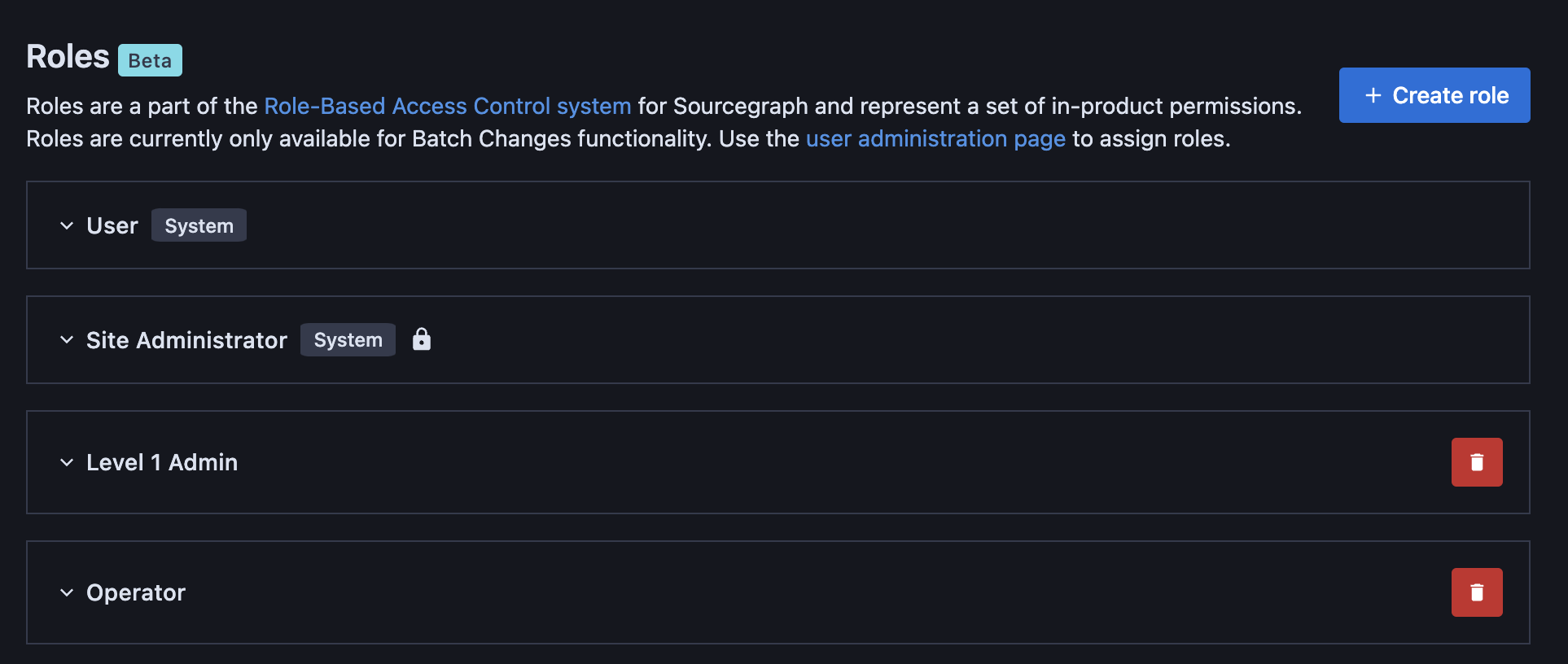
Site admins can control which features each type of user has access to by creating custom roles and assigning permissions to them. You can see all available roles and create new ones under **Site admin > Users & auth > Roles**.
### System roles
Every Sourcegraph instance ships with two built-in system roles:
- **Site Administrator**: This role is granted to any user who is promoted to site admin. It always has all features and permissions of Sourcegraph granted to it and the set of permissions cannot be modified.
- **User:** This role is granted to every user of the Sourcegraph instance and cannot be unassigned. By default, it has all features and permissions of Sourcegraph granted to it, but _the set of permissions can be modified_.
### Creating a new role and assigning it permissions
To create a new role, click the **+ Create role** button. Give the role a unique, descriptive name, then select which permissions to associate with it using the checkboxes. Then click **Create**.
### Editing permissions for an existing role
> NOTE: The **Site Administrator** role cannot be modified.
To edit the permissions granted to a role, click the role to expand it, then select the new set of permissions you want to grant to it. Then click **Update** to save your changes.
You can read about the specific permission types available for each RBAC-enabled product area below:
- [Batch Changes](/admin/access-control/batch-changes)
- [Service accounts](/admin/service-accounts)
- [Sourcegraph MCP Server](/api/mcp#availability-and-access-control)
### Deleting a role
Built-in system roles cannot be deleted.
To delete a role, click the **Delete** button on it. You will be prompted to confirm your choice. Once deleted, all users previously assigned that role will lose all permissions associated with it. Be aware, though, that the same permissions could still be granted by their other roles.
## Managing user roles
Built-in system roles cannot be assigned this way.
Site admins can manage which roles are assigned to which users from **Site admin > Users & auth > Users**. To view or edit a user's roles, click the triple dots to open the context menu for that user, then click **Manage roles**. This will open a modal dialog where you can see the user's current roles, assign new ones, or unassign current ones. You can type in the input field to search roles by name. Click **Update** to save any changes, or **Cancel** to discard. Note that system roles cannot be revoked or assigned via this modal.
To assign the **Site Administrator** system role to a user, open the same context menu from the triple dots, then click **Promote to site admin**. To unassign the **Site Administrator** role, open the same context menu from the triple dots, then click **Revoke site admin**.
The **User** system role is automatically assigned to all users and cannot be revoked.